

Time: about 20 minutes · Role: Member or Admin (Viewers have no Catalogue) · Works on: Enterprise and SaaS. On the SaaS Free plan you can have 3 workers (agents and workflows together) and 1 knowledge base. · You need: two or three policy wordings (PDF or Word), for example “Home insurance policy wording” and “Travel insurance policy wording”
Watch: Start from the Catalogue (1 min 13 s)
What you will have at the end
- A published agent made from a Catalogue use case, bound to your own knowledge base.
- That knowledge base, with your wordings processed.
- One task in which the agent answered from those wordings.
1. Browse the Catalogue and open a use case
Activating a use case gives you a copy you can change.1
Open the Catalogue
In the sidebar, under Workforce, click Catalogue.
2
Narrow the list
Under What it is, tick AI agent. Type “policy” in Search the catalogue.
3
Open the use case
Click Policy Q&A Agent. Read Who it is for, The problem, What it does and How it runs on the left. Some use cases also list What it does not do.
4
Look at Readiness
On the right, Readiness lists what the use case needs. The Policy Q&A Agent needs no toolkit, only one set of documents, “Policy Wordings”, marked You provide; when a knowledge base of that name already exists, the row says Already in your knowledge bases instead. The badge reads Ready to activate. Other use cases read One connection away or Needs your system when they reach for a toolkit or one of your own systems. You can activate those too: the agent is created without the toolkits your organization has no connection for.
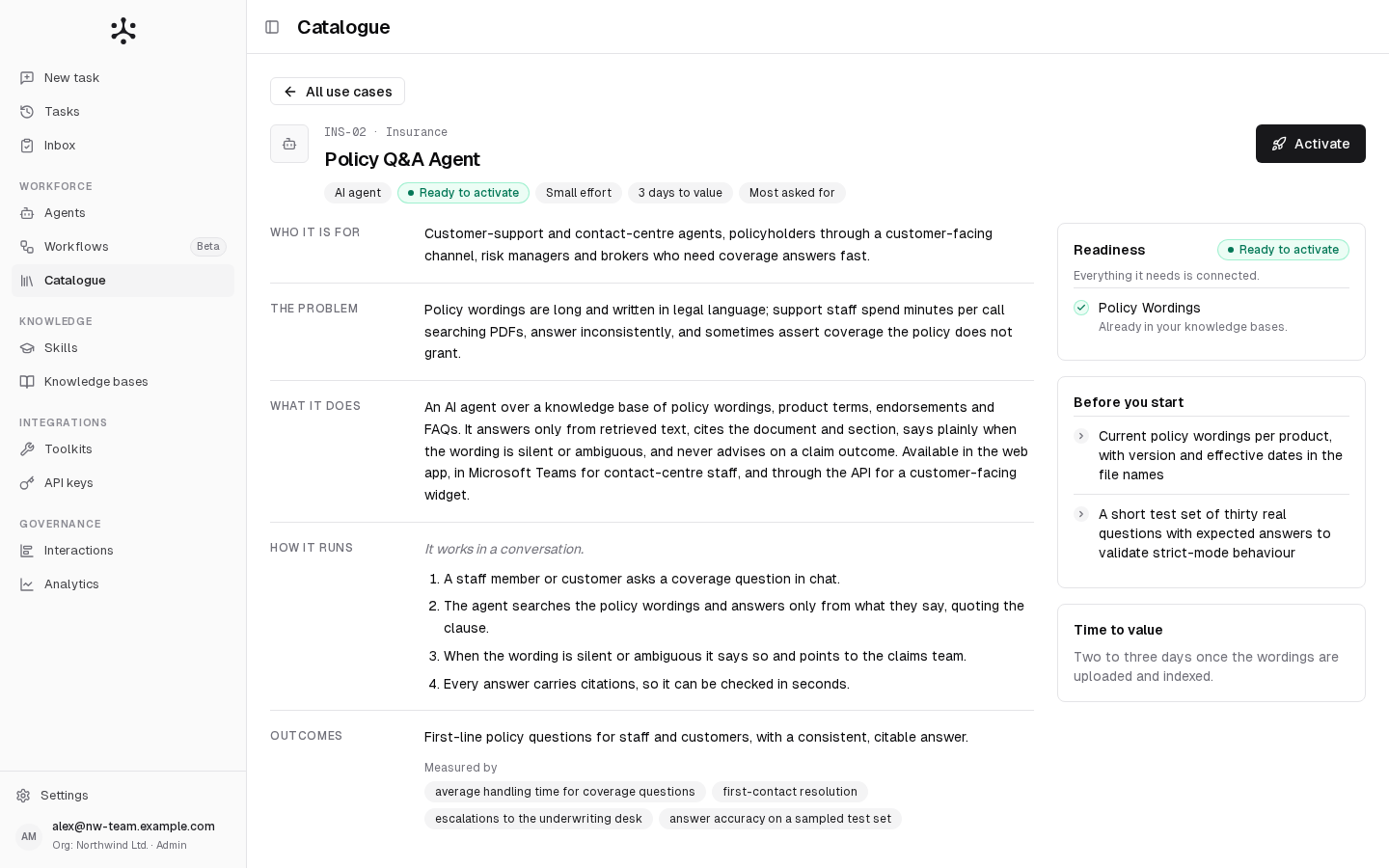
The page shows an Activate button. If it is greyed out, see If something goes wrong.
2. Activate it
1
Click Activate
Four steps follow: Connect, Documents, How it runs and Build. Move between them with Back and Continue.
2
Connect
Connect what it reaches for says Everything is connected. Nothing to do here. Click Continue. A use case that reaches for toolkits lists them here; you can continue without connecting them and connect them later, see Connect an agent to your tools.
3
Documents
Under Point it at your documents, choose the knowledge base for “Policy Wordings”. If your wordings are already in a knowledge base, pick it; one named “Policy Wordings” is picked for you. Otherwise keep Create “Policy Wordings” to get a new, empty knowledge base. On the SaaS Free plan, which allows one knowledge base, pick the one you already have if you have one. Click Continue.
4
How it runs
Leave How it starts on In a conversation. This use case has No approval gate. Under Who can use it, keep Only me, for now while you try it. Click Build it.
5
Build
The step creates the knowledge base if you asked for a new one, then the agent. It ends on Your draft is ready.
When something is left to do, Before you publish names it. If you created a new knowledge base, expect a line saying that “Policy Wordings” has no documents yet.
3. Add your documents
Skip this section if you picked a knowledge base that already holds your wordings.1
Open the knowledge base
Under Knowledge, click Knowledge bases, then “Policy Wordings” (or the knowledge base you picked).
2
Add a File data source
Click Add Source, choose File, type a Data Source Name and a Description, and click Create.
3
Upload and wait
Click the new source in Data Sources, then Upload, and choose your files. Wait until each one shows Processed.
”Policy Wordings” shows Indexed in the Knowledge bases list.
4. Publish and run it
Nobody can start a task with a draft until you publish it.1
Open the draft
Click Open the draft on the last activation step, or go to Workforce › Agents and click “Policy Q&A Agent”, which has the Draft badge. It opens in the studio.
2
Review it
Read Instructions and Guardrails. The agent answers only from its knowledge base, quotes the clause it relies on and cites its sources. Change anything with Edit.
3
Publish
Click Publish in the header. Write who reviewed it under Review note (optional) and click Publish.
4
Ask it something
Click New task in the studio’s header. Ask a question your wordings answer, such as “What does our home insurance policy, version 2026.1, say about a burst pipe?”, and press Enter.
The answer quotes the clause from your wording, with a numbered citation such as [1], and 1 source used below it. Click 1 source used to see the file it came from.
If something goes wrong
- Activate is greyed out (SaaS): your plan has no room for another worker. The tooltip says how many workers (agents and workflows) the use case needs and how many you use. Delete an agent or workflow you no longer need, or upgrade. See Plans and limits.
- The Build step shows It could not be built: the reason follows. Click Try again: it repeats only what failed, and reuses a knowledge base an earlier attempt created.
- The agent asks which product and policy version you mean: it does this whenever a question could apply to more than one wording. Answer it, or name the product and version in the question.
- The agent says the policy text does not specify this: check that your documents are Processed and that they answer the question. The agent never answers from general knowledge.
- Connect shows Ask an administrator (Enterprise, for a use case that needs a toolkit): only Admins connect toolkits there. Continue without it, or ask an Admin.
Where to go next
- Catalogue overview
- Activating a use case: every option of the four steps
- Build your first agent