

Time: about 10 minutes · Role: Member or Admin (Viewers have no Schedule button) · Works on: Enterprise and SaaS. On the SaaS Free plan you can have 1 schedule. · You need: a published agent you can use, with Web search switched on under What it can do (see Build your first agent to make one)
Watch: Get a report on a schedule (57 s)
What you will have at the end
- A schedule named “Weekly industry news” that runs every Monday at 08:00.
- One report it wrote, opened from the schedule’s run history.
- The schedule paused, ready to resume when you want the reports again.
1. Write the request and schedule it
Write the request the way you would for a single task. Every run asks it again.1
Open New task and pick the agent
Click New task in the sidebar. Click the agent name in the composer’s bar and pick the agent.
2
Write the request
Type what each report should contain, without sending it. For example: “Search the web for this week’s news about the European logistics market. Write five bullet points, each with a link to its source.”
3
Click Schedule
Click Schedule in the composer’s bar instead of sending. The Schedule this task sheet opens with your request under What should it do?
4
Name it
Change Name to “Weekly industry news”. This is the name you will see in Tasks.
5
Choose Monday at 08:00
Under Runs, keep Every day. The picker starts on weekdays at 09:00, so under On these days switch off every day except Monday, and set At to 08:00. The sentence below the picker says in words when it runs.
6
Check the time zone and create
Times in shows the time zone the schedule follows, your browser’s unless you click Change. Next 5 runs lists the coming Mondays. Click Create schedule.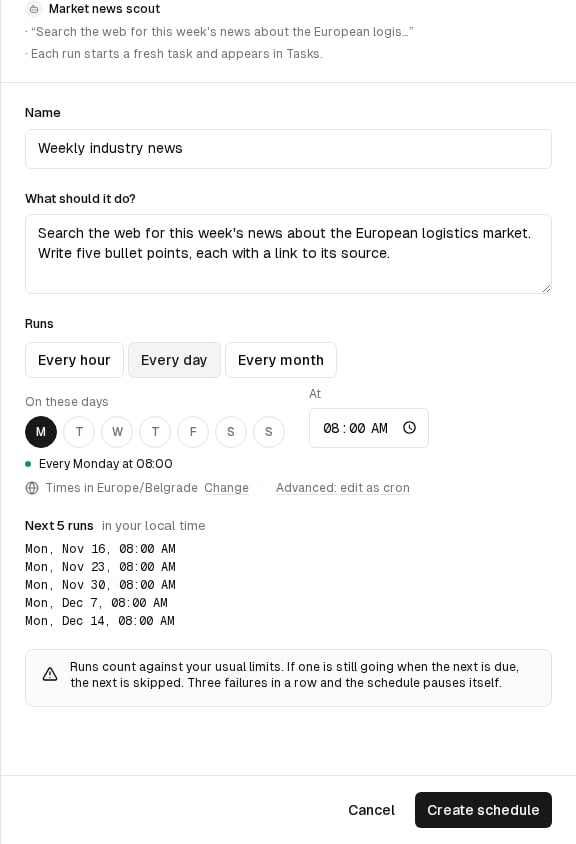
The schedule’s page opens, and a message names the next run.
2. Find it under Tasks › Scheduled
1
Open Tasks
Click Tasks in the sidebar, then Scheduled above the list.
2
Find your schedule
“Weekly industry news” is in the list with the status Scheduled. The When column shows when it runs next.
3
Open it
Click the row. The schedule’s page shows the Worker, the Status, the Cadence in words and the Next run, with What it asks below.
The page reads No runs yet. Use “Run now” to try it. under Run history.
3. Try a run now
You do not have to wait until Monday to see what the report looks like.1
Click Run now
Click Run now in the top bar. One run starts and its task opens, so you can watch the agent work.
2
Read the report
When the agent has finished, read the answer. If it is not what you wanted, change the request with Edit on the schedule’s page.
3
Look at the run history
Go back to the schedule’s page. Run history has a row for the run, with Manual as its Trigger, its Outcome, Duration and Cost. Open task opens the report again.
The run’s row in Run history shows Completed under Outcome.
4. Pause it
1
Click Pause
On the schedule’s page, click Pause. The status changes to Paused and no more runs start.
2
Resume when you need it again
Click Resume. The next run follows the cadence from then on.
Under Tasks › Scheduled, the row shows Paused.
Rules worth knowing
The sheet sums these up in one line: “Runs count against your usual limits. If one is still going when the next is due, the next is skipped. Three failures in a row and the schedule pauses itself.”- A schedule runs as you, with your access. Each run counts toward your usage and your number of tasks at a time.
- A run is also skipped while the agent is not published.
- Runs that failed, timed out or were not started all count toward those three failures.
- How many schedules you may have:
- SaaS: 1 on Free, 10 on Pro, 10 per person and 50 per organization on Business.
- Enterprise: by default 20 agent schedules per person and 200 per organization.
If something goes wrong
- “Write what the agent should do first.”: the message box was empty when you clicked Schedule. Type the request, then click Schedule again.
- “Your plan allows 1 schedule per person. Upgrade your plan or delete a schedule to add another.” (SaaS): delete a schedule you no longer use under Tasks › Scheduled, or upgrade. See Plans and limits.
- The page says Stopped running: the schedule paused itself, and the page gives the reason, for example three failed runs or an agent you can no longer use. Fix the cause, then click Resume.
- A run shows Skipped: the previous run was still going, or the agent is not published. See Schedules for every outcome.