

Who: everyone, Viewers included; each person sees only their own tasks · Where: Tasks in the sidebar · Works on: Enterprise and SaaS
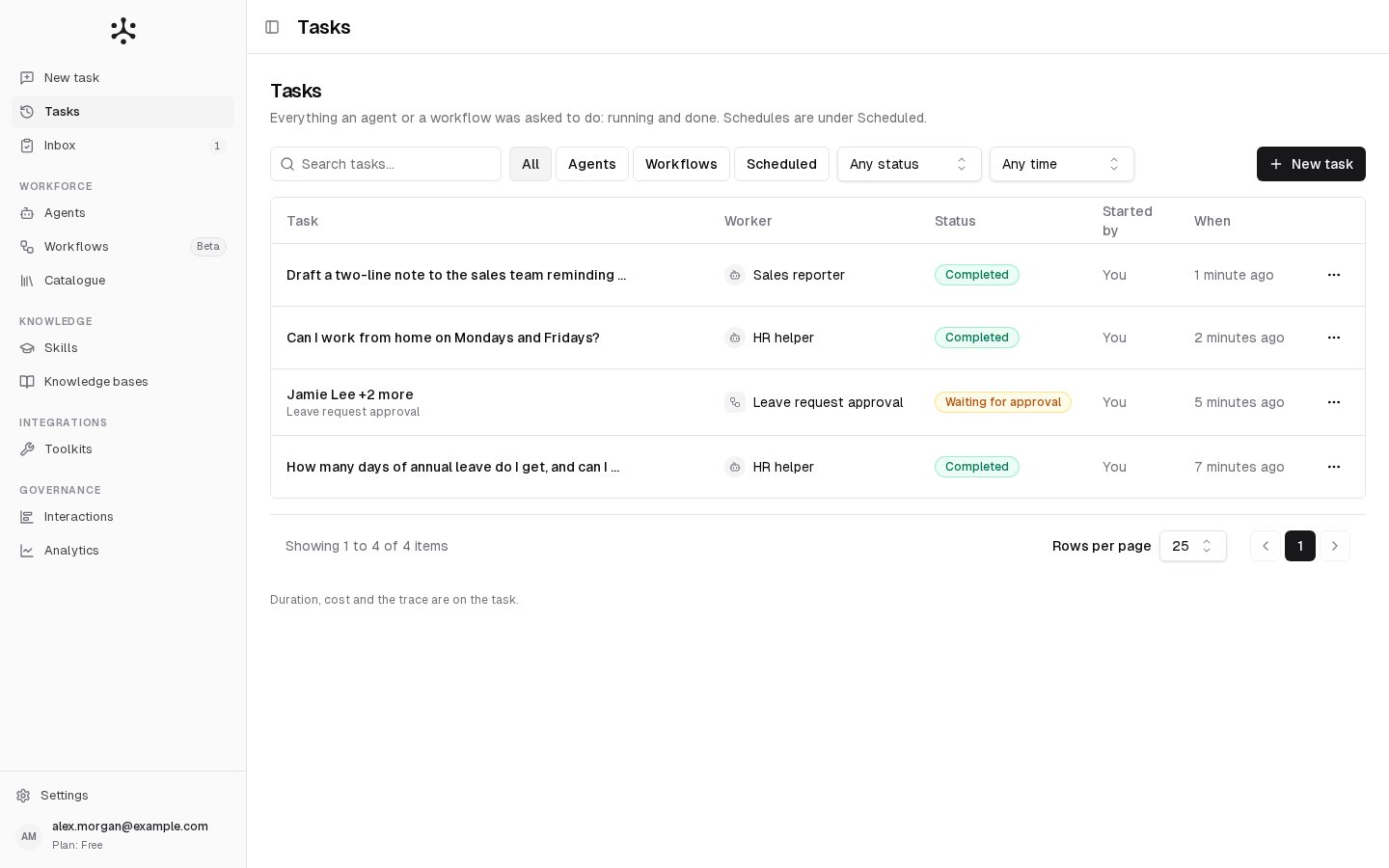
- a conversation with an agent, from its first message to its last (continuing it keeps it one task);
- one run of a workflow;
- a schedule, listed under Scheduled, which starts a new task each time it runs (see Schedules).
Find a task
1
Pick the kind
Click All, Agents, Workflows or Scheduled.
2
Narrow it down
Pick a status (Any status, Running, Waiting, Completed, Failed) or a time window (Any time, Last 24 hours, Last 7 days, Last 30 days). Or type at least 2 characters in Search tasks…: it looks in the task’s name, its first message or inputs, and the worker’s name.
3
Open it
Click the row. Clear filters resets the view.
What opening a task shows
- A conversation opens with its whole thread, and you can continue it. See Past conversations.
- A workflow run opens with a strip showing Worker, Started, Status, Duration and Cost, then the run’s steps and output.
- A schedule opens its schedule page.
- Schedule this, which opens the schedule sheet with the worker and the first message, or the run’s inputs, filled in. It is not offered to Viewers, and on a workflow run only to the workflow’s owner and Admins.
- Run again (workflow runs), which opens New task with the same workflow and inputs and the note Prefilled from this task. Send to run it again. Check the inputs and click the run button (the play icon).
Rename, stop or delete a task
The ⋯ menu, on a row and at the top right of a task, has:- Rename: a name of your own, up to 100 characters. The list shows it and the search finds it.
- Stop, while the task is queued, running or waiting: it ends the task.
- Delete, once the task has finished. Confirm in Delete this task? A conversation loses its messages and files. A workflow run loses its steps and outputs, while its summary, audit trail and cost stay in the workflow’s run history.
Statuses
Members and Admins also find tasks waiting for them in the Inbox.
The columns
Why don't I see other people's tasks?
Why don't I see other people's tasks?
The list shows only your own tasks and schedules, whatever your role. Admins find the organization’s activity under Governance › Interactions, and each workflow’s runs in its run history.
Which conversations are listed
Which conversations are listed
Conversations started in the web app and by your schedules. Conversations through the API or Microsoft Teams are not listed. Workflow runs are listed however they were started.
How the Scheduled filter, status and time window combine
How the Scheduled filter, status and time window combine
Scheduled lists your schedules first (active ones by next run, paused ones last), then the tasks your schedules started. Schedules appear only under Scheduled. While a status is selected, schedules are hidden, and the time window never applies to them.
Search, paging and sharing a view
Search, paging and sharing a view
The search ignores capital letters and takes up to 100 characters. A search shows no total: move through the results with Previous and Next. Show 10, 25, 50 or 100 rows per page. A count above 10,000 reads 10,000+, and the list does not page beyond 10,000 rows, so narrow it with a filter.The filters, the search and the page are kept in the page’s address. Reloading, coming back from a task or sharing the link shows the same view.
When the list cannot load
When the list cannot load
- Couldn’t load tasks: click Retry.
- This list took too long: pick a shorter time window or type a longer search, then Retry, or Clear filters.
- Some tasks couldn’t be loaded: your agent or workflow schedules could not be read this time. Everything else is listed; Retry tries again.
- Couldn’t refresh the list: the rows shown are from the last successful load; Retry tries again.