

Who: Members and Admins for agent schedules; the workflow’s owner and Admins for workflow schedules · Where: Schedule in the composer on New task, or Schedule this on a task · Works on: Enterprise and SaaS
Create a schedule
Start in one of two places:- On New task, write the prompt (or fill in the workflow’s form), then click Schedule in the composer instead of sending.
- On a finished task, click Schedule this at the top. The sheet is filled with the conversation’s first message or the run’s inputs.
1
Open the sheet
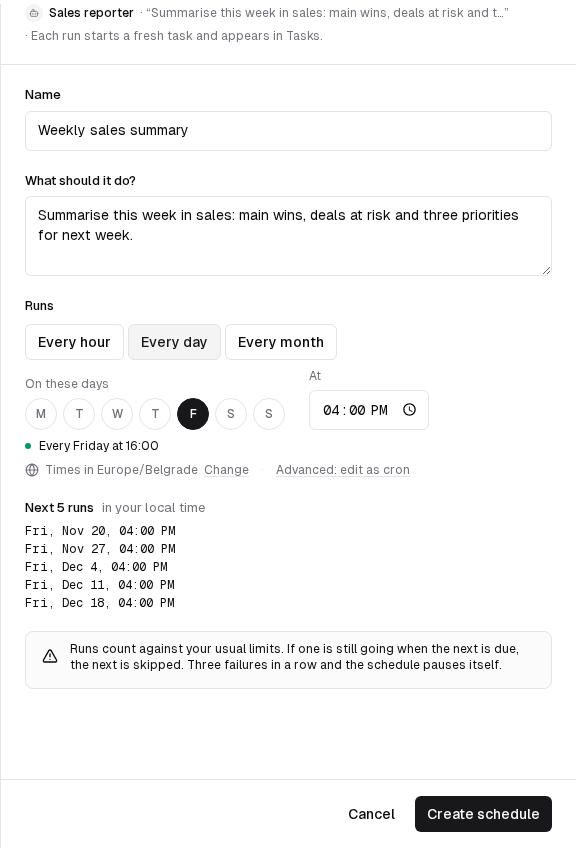
Schedule this task opens on the right, naming the worker and what it will be asked. For an agent, write the prompt first: Schedule reminds you if the box is empty.
2
Name it
Name starts with the first words of the prompt, or the workflow’s name. Change it to something you will recognise in Tasks (up to 200 characters).
3
Check what it runs
For an agent, What should it do? holds the prompt every run starts with. For a workflow, Inputs it runs with lists the inputs every run gets.
4
Choose when it runs
Under Runs, pick Every hour (on the hour), Every day (choose the days under On these days and the time under At; weekdays at 09:00 by default) or Every month (a day from 1 to 31 and a time). A sentence below says in words when it will run.
5
Check the time zone
Times in shows the time zone the schedule follows: your browser’s, unless you click Change and pick another. Next 5 runs lists the next five runs in your local time. A warning appears when a run falls on a daylight-saving change.
6
Create it
Click Create schedule. The schedule’s page opens, and a message names the next run.
Run, edit, pause or delete a schedule
Open the schedule from Tasks (click Scheduled, then its row) or from the Scheduled · chip at the top of a conversation it started. The top bar has:- Run now: one run immediately, even while the schedule is paused. Use it to test. The new task opens.
- Edit: opens Edit schedule. Change the name, the prompt (agent schedules), or the cadence and time zone, then click Save changes. A new cadence counts from now. A workflow schedule’s inputs cannot be changed: create a new schedule for other inputs.
- Pause stops it from starting runs. Resume turns it back on: the next run follows the cadence from now, and earlier failures are forgotten.
- Delete asks Delete schedule? The schedule starts no more tasks, and the tasks it already started are kept.
Viewers cannot create schedules.
What the schedule page shows
A strip at the top with the Worker, the Schedule name, the Status (Scheduled or Paused), the Cadence in words and the Next run. Below it: What it asks (an agent schedule’s prompt) or Inputs it runs with, the Run history, Next 5 runs in the schedule’s time zone, and Good to know, a short reminder of how runs behave.
The history keeps about the last 90 days of runs by default.
Rules and limits
Each run starts fresh
Each run starts fresh
A run never carries over the previous run’s conversation or state.
When a run is due while the last one is still going
When a run is due while the last one is still going
- Agent schedules: the new run is skipped. A run is also skipped while the agent is not published.
- Workflow schedules: the new run starts anyway, unless you already have as many workflow runs going as you are allowed at a time. Then it is skipped.
Schedules that pause themselves
Schedules that pause themselves
A schedule whose runs keep failing stops on its own, so it does not keep spending. Its page shows Stopped running with the reason and Fix the cause, then resume it., and its row in Tasks says paused after N failures.It pauses after three failures in a row (runs that failed, timed out or were not started). It pauses at once when it cannot work as it is:
- the person who created it was removed, deactivated or moved to another organization;
- SaaS: their subscription is no longer active;
- the agent was deleted, or the person lost access to it;
- the workflow was deleted or archived;
- the cadence is no longer valid.
How often a schedule can run
How often a schedule can run
At most every 15 minutes by default. Every hour is the fastest choice in the picker. Anything faster needs a cron expression, within that minimum.
How many schedules you can have
How many schedules you can have
- SaaS: your plan sets it: 1 schedule on Free, 10 on Pro, 10 per person and 50 per organization on Business. See Plans and limits. A frozen account cannot create or resume schedules, and its schedules pause when they are due.
- Enterprise: by default up to 20 agent schedules per person and 200 per organization, and up to 200 workflow schedules per organization.