

Who: Admins. On SaaS only on a paid plan (Pro, Business, or a contract), so a Free account does not see it · Where: Settings › Spend limits, under Billing & usage · Works on: Enterprise and SaaS
Set budgets (Enterprise)
The Usage Budget Limits card holds three settings, all per calendar month (UTC):1
Set the organization's budget and the default
Type the amounts in Organization Budget Limit and Default Per-User Budget Limit, then click Save limits.
2
Change one person's limit
In User Budget Limits, find the person (Search by name or email…), click the pencil on their row, type the amount and press Enter (or click the check mark). The table shows each person’s Current Spend against their limit.
- A Member who reaches their own limit: “Your usage limit for this month is reached. Ask an administrator to raise it.”
- When the organization budget is reached: “The organization’s budget for this month is reached. Ask an administrator to raise it.”
- An Admin reads the same first sentence followed by “Raise it on Spend limits.”
Buy a top-up (SaaS)
A top-up pays for usage once the included usage is spent. On Pro the Top-ups card shows your Top-up balance. On Business the balance belongs to the organization and only Admins can buy.1
Open Spend limits
Go to Settings › Spend limits.
2
Enter the amount
Under Buy more (minimum €20), type the amount.
3
Pay
Click Buy a top-up and pay in the checkout. Once the payment is confirmed, the amount excluding VAT is added to your balance and you see “Top-up added to your balance”.
Limit each member’s use of top-ups (SaaS Business)
Each member of a Business organization has their own included usage, which no limit touches. Once it is used, they draw on the organization’s top-ups. A top-up limit holds how much of those top-ups one member may use in a billing period. The card is called Top-ups and top-up limits.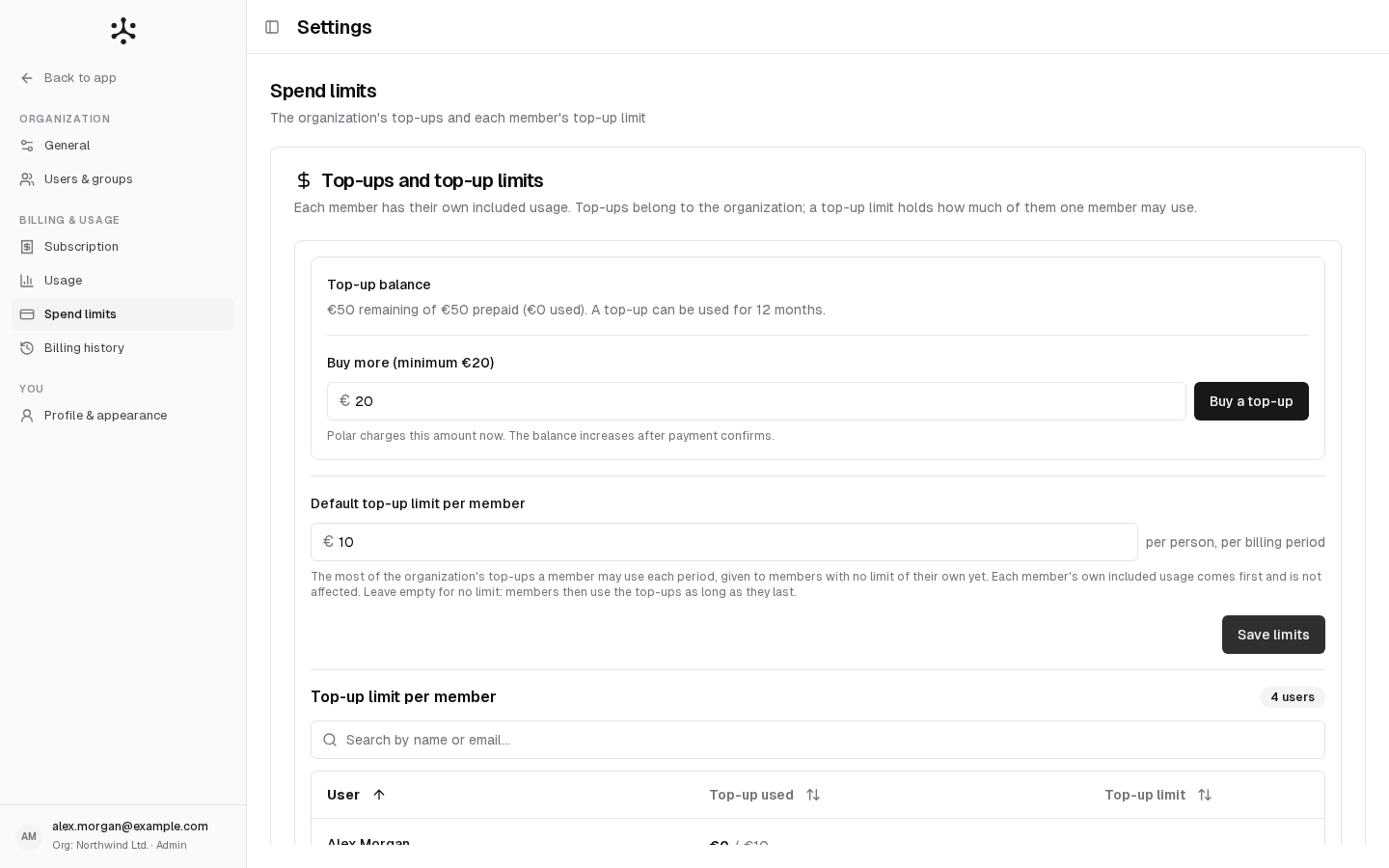
1
Set a default
In Default top-up limit per member, type an amount per person, per billing period, then click Save limits. It applies to members who have no limit of their own yet. Leave it empty for no limit: members then use the top-ups as long as they last.
2
Change one member's limit
In Top-up limit per member, click the pencil on the member’s row (Edit limit), type the amount and press Enter. Press Escape to cancel.
0 stops the member from using top-ups, while their own included usage stays available.
A member who reaches their top-up limit reads “Your spend limit for this period is reached. Ask an organization admin to raise it.” An Admin reads “Your spend limit for this period is reached. Raise it on Spend limits.”
Less common cases
Contract or demo accounts (SaaS)
Contract or demo accounts (SaaS)
Neural Factory sets the budget and grants the on-demand credit, and the members share both. The card is called Budget and on-demand limits. On-demand credit shows what is left of what Neural Factory granted. It cannot be bought.Set Default on-demand limit per member and click Save limits. In Limits per member, click the pencil (Edit limits) to give a member a Budget limit on the shared budget and an On-demand limit on the credit. The table also shows Budget used and On-demand used.
Why there is no limit on included usage (SaaS Business)
Why there is no limit on included usage (SaaS Business)
Each seat includes the plan’s usage, so a member’s included usage cannot be limited. Only a contract’s budget is limited per member.
A Member cannot buy a top-up
A Member cannot buy a top-up
On Business only Admins see this page and buy top-ups. A Member whose included usage is used up reads “Your included usage is used up. Ask an organization admin to buy a top-up.”
Related
- Plans and limits: top-up rules and the limits you can reach
- Usage: see what each person used
- Subscription
- Billing history