

Who: Admins see the whole organization; Members see their own · Where: Governance › Interactions in the sidebar · Works on: Enterprise and SaaS
Who sees what
The same rule applies to the list, the record page and the download.
An Admin can preview and download the files in any record of their organization: the files a colleague attached to a chat, and the files a turn or run produced. Members and Viewers open only the files of their own chats. An Admin of another organization cannot open them. An API key opens only the files of its creator’s own chats, even when it holds the Admin role.
Find an interaction
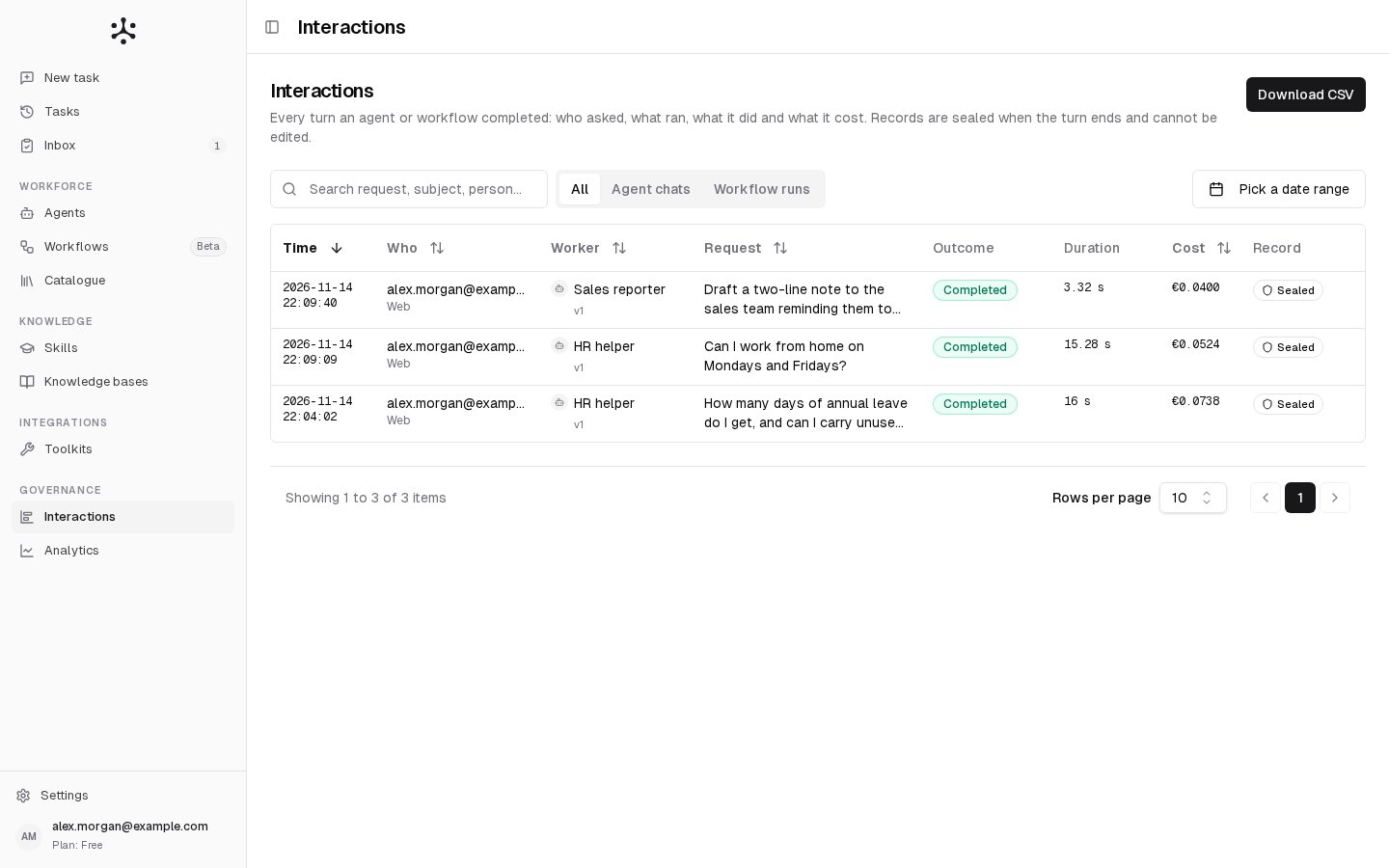
Each row of the list is one agent turn or one workflow run.- Search request, subject, person… finds rows whose request, answer, person’s name or email, or channel contains the text.
- All, Agent chats and Workflow runs show both kinds of row, or only one.
- Pick a date range limits the list to the days you choose, counted in your time zone. Clear dates removes the range.
- Click a column header (Time, Who, Worker, Request, Cost) to sort by it.
Read a record
The top of the record shows the request (or the workflow’s name and input), then Worker, Started (who started it, through which channel, and when), Status, Duration (with the waiting time beside it) and Cost (with the number of tokens).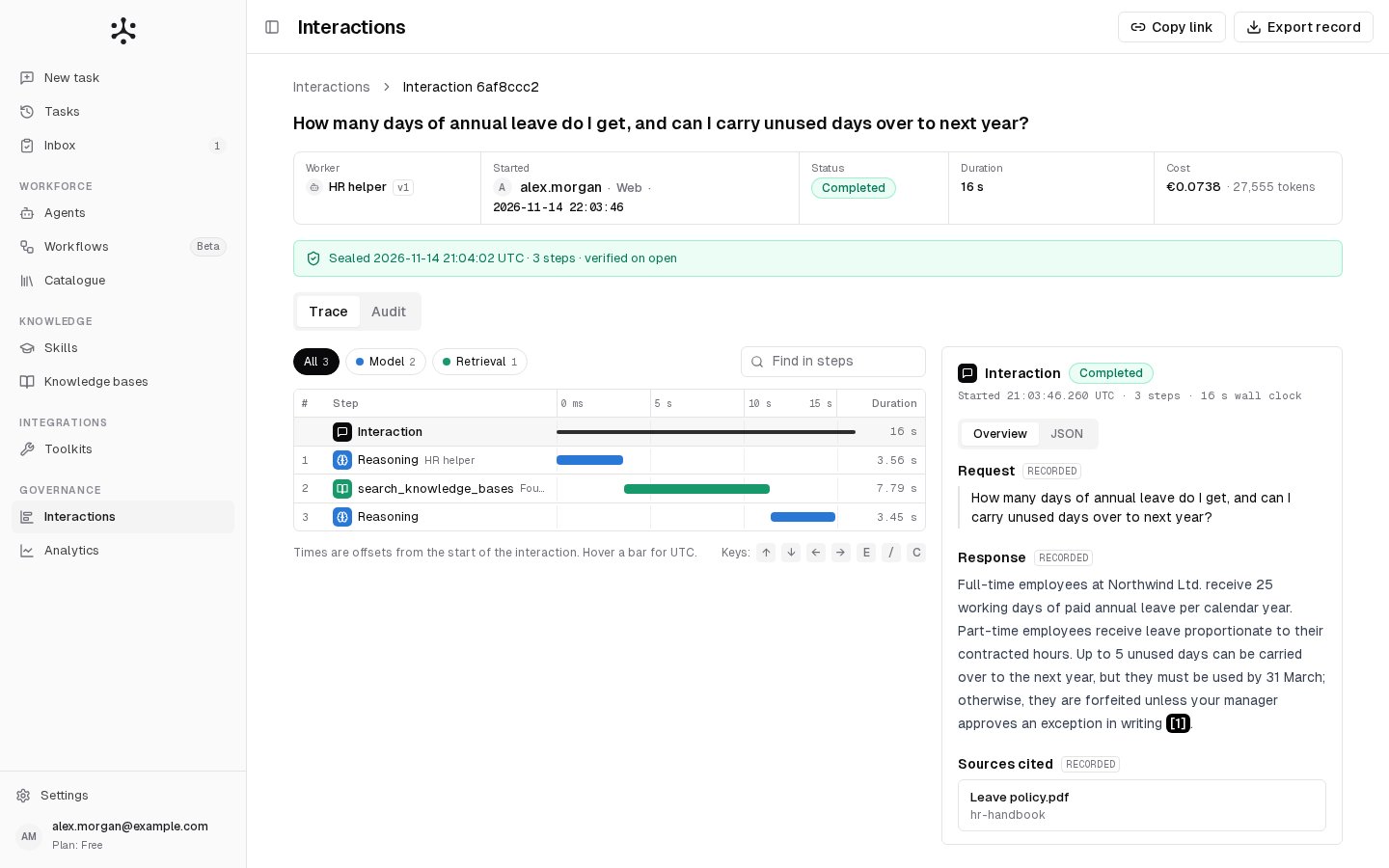
Trace tab
Trace shows every step on a time axis: model calls, tool calls, knowledge-base retrieval, subagents, workflow steps, and decisions made by a person. Time spent waiting for a person is drawn apart from work.- The chips above the steps (All, Model, Tools, Retrieval, Subagents, Logic, Approvals, Skipped, Errors) show one kind of step. A chip appears only when the record has such steps.
- Find in steps searches the steps.
- Fold waiting time shortens long waits on the time axis so the work stays readable.
- Times on the axis are offsets from the start. Hover a bar to see its start in UTC, its duration and its tokens.
Audit tab
Audit lists the facts a reviewer needs, as they were when the turn ended.
A later change of role, a renamed agent or an edited workflow never changes what an existing record says.
Share or export
- Copy link in the record’s header copies a link to this record. Anyone you send it to sees it only if they are allowed to (see Who sees what).
- Export record downloads the whole record as a JSON file: the record, every step with its full content, and a short summary of the integrity check made when the file was created.
- Download CSV on the list downloads every row you are allowed to see for the tab (All, Agent chats or Workflow runs) and the date range you picked, newest first. The search text does not narrow the download. Times in the file are in UTC.
What the CSV file contains
What the CSV file contains
One line per row, with the person’s name and email, the request and the response, the time, the channel, the agent, the API key name, the knowledge bases, subagents and tools used, the feedback and its comment. Workflow runs add the workflow name, run id, run status, duration and how the run was started.
Record states
The strip under the record’s header says whether the record is intact.Cost on Enterprise and SaaS
- Enterprise: the cost is the provider cost.
- SaaS: the cost is the price you are charged, including the platform margin.
What is not in the list
Turns sent through the API without saving
Turns sent through the API without saving
A turn sent through the API with
save_interactions set to false is not listed. See the API reference.Runs that leave no record
Runs that leave no record
A run that fails before its first model call leaves no record. Neither does a workflow run the platform stops, for example for running past its maximum time.
How long records are kept
How long records are kept
Records are not deleted automatically.
Related
- Analytics: totals and trends instead of single records.
- Review agent activity: a step-by-step guide.
- Running a workflow
- Users and roles