

This page exists on SaaS only. An Enterprise installation has no plans or subscription.
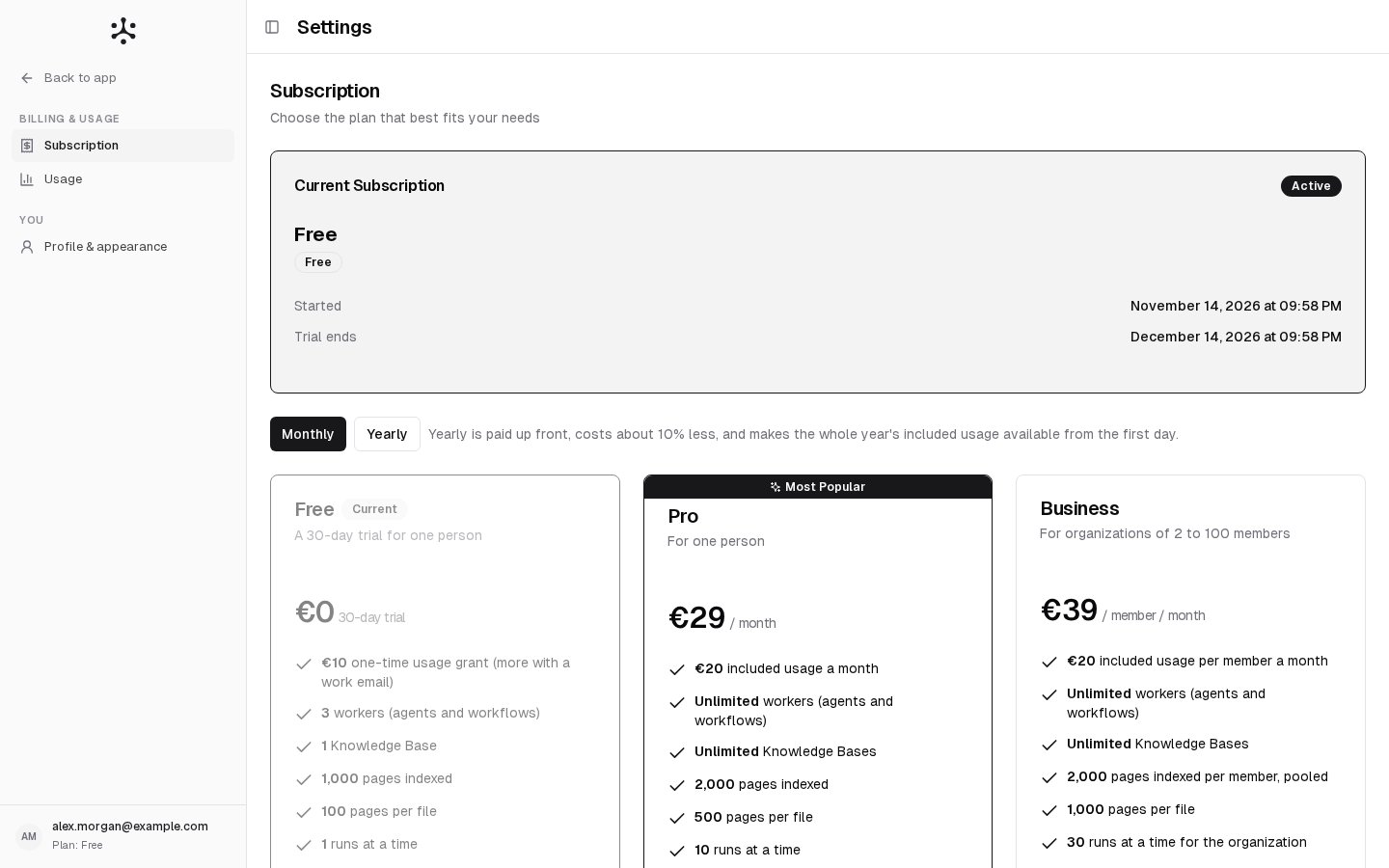
Who: the owner of a personal account (Free or Pro), and the Admins of a Business organization · Where: Settings › Subscription, under Billing & usage. A personal account’s settings open on this page · Works on: SaaS only
What the page shows
The Current Subscription card shows:- the plan and its status: Active, Canceled, Frozen or Payment failed
- when it started, and whether it is billed Monthly or Yearly
- when it renews or ends: Renews, Ends or Trial ends
- on a paid plan, the Payment Method and the buttons that apply to the plan’s state
Upgrade from Free to Pro
1
Choose the billing period
Pick Monthly or Yearly above the plans.
2
Upgrade
Click Upgrade on the Pro card and pay in the checkout that opens.
3
Wait for the confirmation
The page shows “Processing your payment” while the payment is confirmed, then “Plan upgraded successfully!”. The new plan and its limits apply at once.
Switch from Pro to Free
Click Switch to Free on the Free card and confirm. You keep Pro until the end of the period you paid for. After that:- Free gives €10 of included usage for 30 days. Then the account freezes unless you upgrade.
- Your top-up balance is removed and not refunded. The dialog shows how much you would lose.
- Whatever Free does not allow is deleted, newest first: workers past 3, knowledge bases past 1, schedules past 1. The dialog lists what would go, so you can first delete what you no longer need and choose what stays.
Cancel, undo or unfreeze
1
Cancel
Click Cancel Subscription, give a reason if you want to, and confirm with Cancel Subscription. The plan stays active until the end of the period. Then the account is frozen: it keeps what it holds, including the top-up balance, but cannot chat, run or create anything.
2
Undo a cancellation
Until the period ends, click Undo Cancellation, then Confirm Undo. The subscription renews as before.
3
Unfreeze
On a frozen account, click Unfreeze (or Unfreeze with followed by another plan’s name, on that plan’s card) and pay in the checkout. A new period starts that day.
Change the payment method
1
Open the dialog
Under Payment Method, click Change, or Add Payment Method when no card is on file.
2
Enter the card
Enter the new card in the Change payment method dialog. It replaces the card on file and is used for the next renewal.
Create a Business organization
A personal account, Free or Pro, can become a Business organization.1
Open the dialog
Click Create a Business organization on the Business card.
2
Fill it in
Enter the Organization name, choose the number of Seats (2 to 100), and pick Monthly or Yearly.
3
Pay
Click Pay € … and create and pay in the checkout.
Change the number of seats (Business)
The Seats card shows the Current Seats and the Price per seat. Each member holds one seat.1
Enter the new number
Type it in New Seat Count (2 to 100).
2
Update
Click Update Seats.
3
Choose who leaves, if needed
If the new number is lower than the number of people, the Who gives up a seat? dialog asks you to pick who loses access. You cannot pick yourself.
Delete the organization (Business)
The Delete organization card removes the organization with its agents, knowledge bases, toolkits, skills and groups. Type the organization’s name to confirm, then click Delete organization.- With a running subscription, the subscription stops renewing and is not refunded. Everyone keeps working until the paid period ends. Then the organization is deleted and its members are deactivated.
- Without one, the organization is deleted at once, and its members get personal Free accounts.
Less common cases
A refund message appears after a plan change
A refund message appears after a plan change
When a plan is replaced and part of it is refunded, a message ”€… refunded to your card” appears once, on the next page you open. It can take a few days to appear on your statement.
The account is a contract or a demo
The account is a contract or a demo
The page reads “Contract or demo account. Polar is not involved. Caps and included usage are set by Neural Factory.” There is no payment method or checkout. See Contracts and demos.
Members do not see this page
Members do not see this page
In a Business organization only Admins see Subscription. Every Admin can manage the plan, the seats and the card.
Related
- Plans and limits: what each plan includes
- Spend limits: buy a top-up
- Billing history: your invoices
- Users & groups: invite people into your seats
- Organizations