

Who: Members and Admins (a personal SaaS account is the Admin of its own account) · Where: Inbox in the sidebar · Works on: Enterprise and SaaS
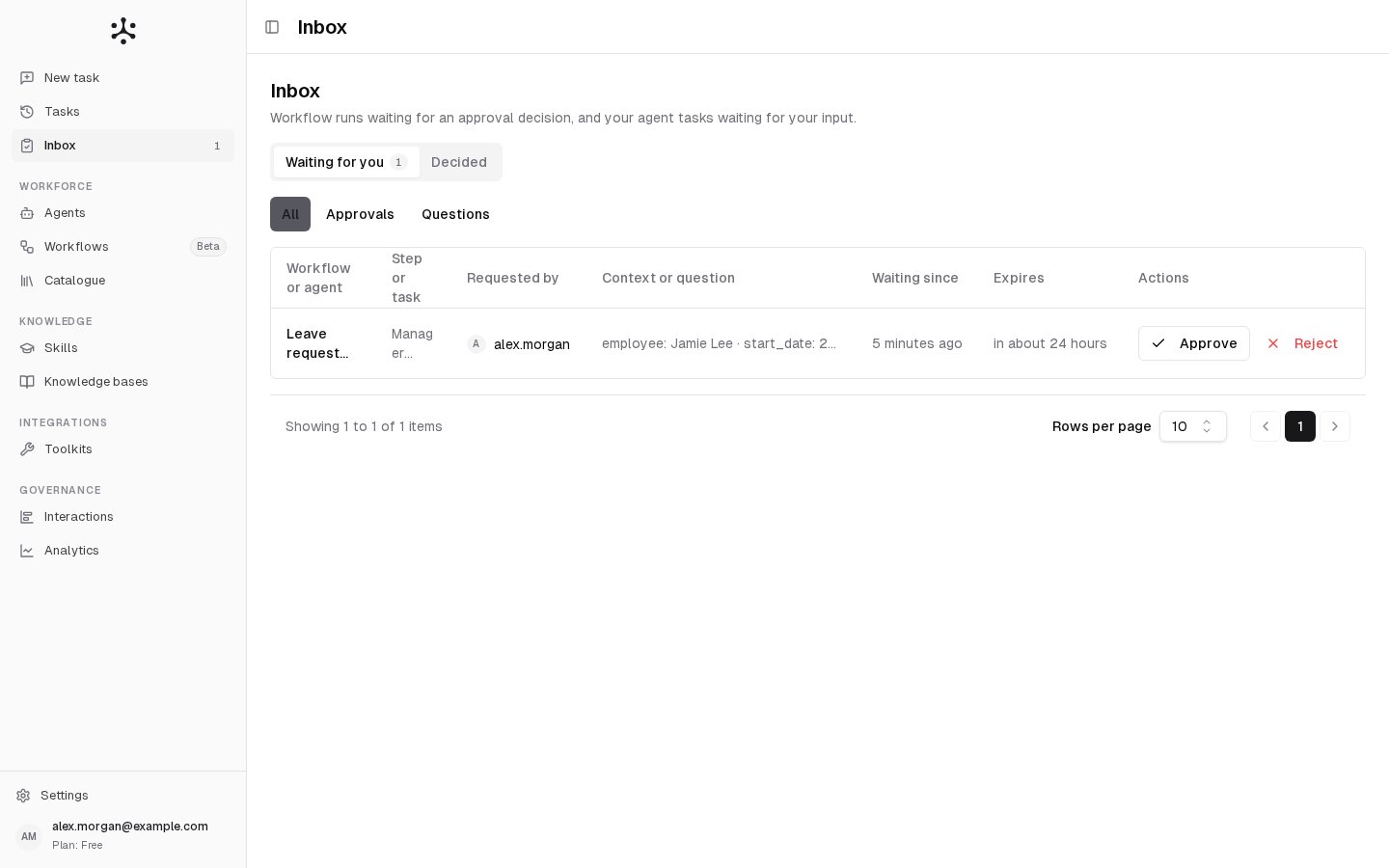
Decide an approval
An approval is a workflow step that waits for a person to say yes or no.1
Open it
On Waiting for you, click the row. A panel opens on the right with Your approval is needed, the step’s prompt when the step sets one, what the step is deciding, and the run’s details.
2
Add a note
Write a Comment and, if useful, Evidence, such as a ticket link or a reviewed document. The comment is recorded with your decision, and the evidence on the audit trail.
3
Decide
Click Approve & resume run or Reject. The run continues on the path for your decision.
Answer an agent’s question
A question is one of your own agent tasks that paused to ask you something, or to hand you its browser for a step only you can do. Click Answer, or the task’s name, to open the conversation. Reply in the message box, or click Open browser to take over the browser and hand it back. The agent continues from where it stopped. See When the agent pauses for you. By default a question expires after 72 hours, and the task then ends as failed.The Waiting for you tab
Newest first. Filter with All, Approvals or Questions, and show 10, 25 or 50 rows per page. When nothing waits, the tab reads Nothing is waiting for you.
Expires turns amber when less than 6 hours are left and red under 2 hours, then reads Expired. What happens when an approval expires is set on the workflow’s approval step: see Building a workflow.
The Decided tab
Approvals that are no longer waiting, most recent first. Answered agent questions are not listed: they stay in their conversations.Who sees what
A step names its approvers as a role or as groups. A step that names nobody can be decided by anyone who sees it. Only the person who started a conversation can answer its question.
Personal SaaS accounts
Personal SaaS accounts
You see the approvals of the runs you started. Because you started them, you can decide one only when the approval step allows the person who started the run to decide (see four-eyes below).
Four-eyes: you started the run
Four-eyes: you started the run
The person who started a run cannot decide its approval, unless the step allows it. They see the row with the decision buttons off and a line saying they started the run and someone else must decide it. They can still cancel the run from the panel.
The step needs a role you do not have
The step needs a role you do not have
The decision buttons are off and say which role is required.
Viewers
Viewers
Viewers have no Inbox. When an agent asks a Viewer something, the Viewer answers in the conversation, which they find in Tasks under the Waiting status.