

Who: Admins and Members (Viewers cannot run workflows) · Where: New task, or Workflows › a workflow › Runs · Works on: Enterprise and SaaS
Run from New task
1
Pick the workflow
On New task, open the worker picker at the bottom of the message box. Workflows are listed under Workflows, after the agents, with their published version (for example v3 · published). Only published workflows that are not archived are offered. Type to search, and click the star to keep a workflow at the top.
2
Fill in the inputs
The message box turns into the workflow’s input form. Fields marked optional can stay empty, and some workflows group them under Optional inputs. Below the form, a badge says how many required inputs are still empty, or Ready.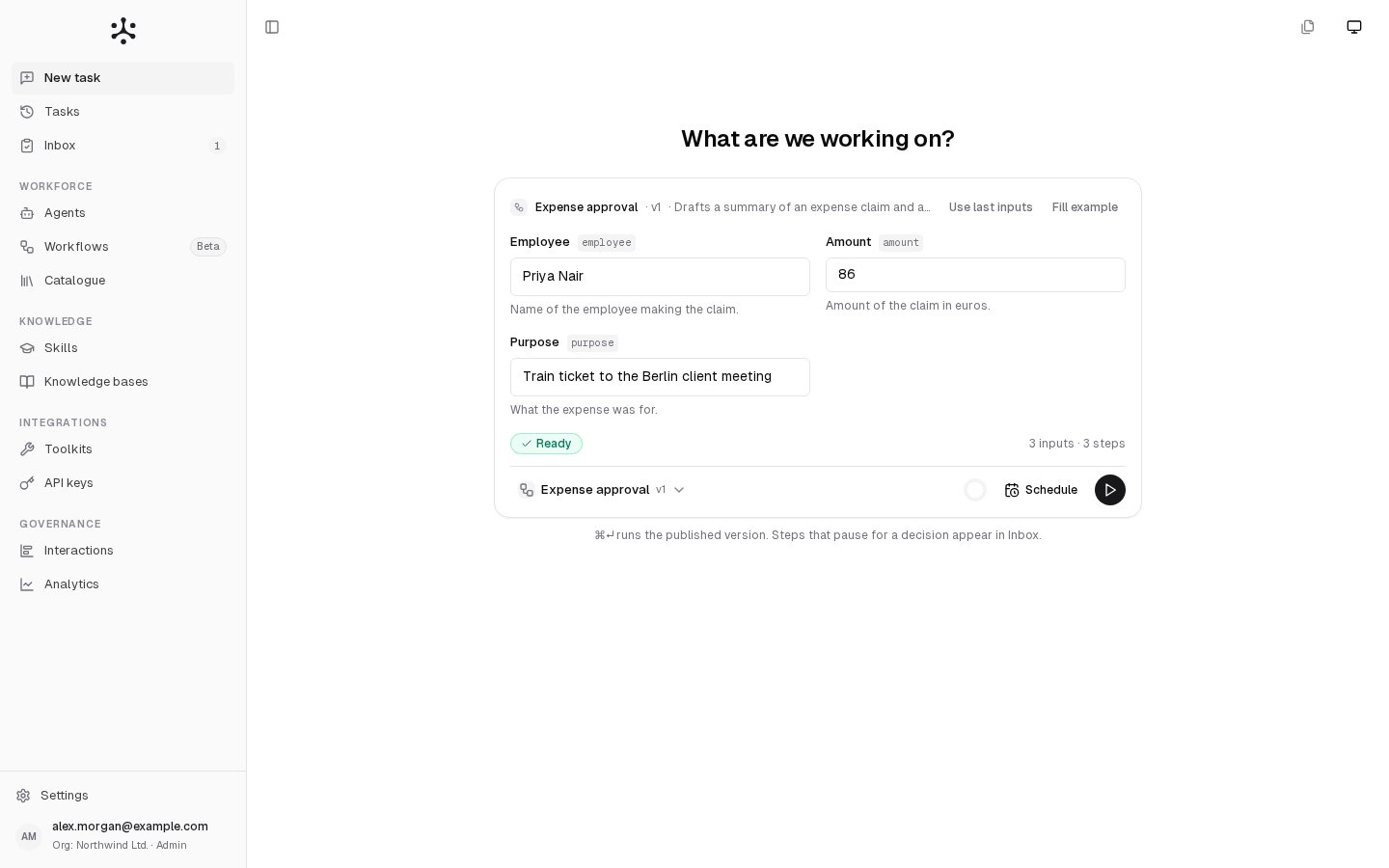
- Use last inputs fills the form with the inputs of the workflow’s last run. Files are not kept with a run, so you pick them again.
- Fill example fills the form with example values, where the workflow defines them.
3
Run
Click the run button (the play icon), or press Ctrl+Enter (⌘+Enter on a Mac). The run starts on the published revision and its task page opens.
Run from the workflow page
Open the workflow from Workflows (or choose Run in its row menu), then open the Runs tab.1
Fill in the inputs
Under What to run it on, fill in the inputs. Required ones are marked with an asterisk. When the workflow has no inputs, the page says there is nothing to fill in, and you go straight to Run.
2
Run
Click Run in the header. If a required input is empty, the run does not start and the missing fields are listed.
3
Follow the run
The run’s steps appear on the right as they run. While it runs, the inputs it uses stay visible, greyed out. New run clears them for the next run.
Which revision Run uses
Which revision Run uses
- Members the workflow is shared with always run the published revision.
- The owner and admins run the revision chosen in the header’s revision picker: Published by default, Draft, or an earlier revision. More actions › Test run (draft) runs the latest saved draft. A workflow that has never been published runs its draft.
Why Run is disabled
Why Run is disabled
Run is disabled while the workflow has unsaved changes (Save changes before running), a pending proposal (Resolve the pending proposal before running) or issues to fix (Fix blueprint validation issues before running).
Decide an approval
When a run reaches an Approval step, it pauses with the status Waiting for approval. The request appears:- in the Inbox, under Waiting for you, for every admin and member who can see the workflow and matches the step’s approver role or groups;
- on the run page and on the workflow page’s Runs tab;
- by email to the addresses the step lists, when your installation has email set up.
1
Review
Read the request. Technical details shows the full data the step received.
2
Add a comment and evidence
Comment and Evidence (for example a ticket link or the document you reviewed) are optional. Both are recorded on the audit trail with your decision.
3
Decide
Click Approve & resume run or Reject. Rejecting without a comment asks you to confirm (Reject anyway) or to Add a note.
The run page
A run started from New task, or opened from Tasks, has its own task page. The top shows the Worker (the workflow and its version), when it Started, its Status, its Duration and its Cost. When the run waited for an approval, the duration is split into time active and time waiting. The page then shows the sections that apply to the run.Cancel a run
The person who started a run, or an admin, can cancel it while it is running or waiting for an approval. Click Cancel run next to the run (on the Runs tab or under a pending approval) and confirm, or choose Stop in the task page’s actions menu.Schedule a workflow
The owner of a workflow and admins can run it on a schedule. Each scheduled run starts a fresh run and appears in Tasks.- From New task or a run page: fill in the inputs, then click Schedule (or Schedule this on a run). The schedule sheet opens with those inputs. See Schedules.
- From the workflow page: More actions › Schedule automatic runs opens Schedules. Enter a Cron expression (or click a preset such as Every day at 09:00), a Timezone, an optional Name, the Revision to run (Published or Draft (head)) and the Default inputs (JSON), then click Add schedule. Each schedule shows its next and last run and its last error. Turn it off with its switch, or delete it.
Other ways a workflow runs
A workflow can also be started through the API with an API key (see API keys and the API reference), or by an agent that was given the workflow to run (see Configuring agents). More actions › Run analytics on the workflow page counts runs by how they were started: Manual, API, Schedule or Agent.When a run does not start
When a run starts but fails, open it and read Error on the run page. The step that failed is marked under Step Execution.