

Who: Admins and Members · Where: Knowledge › Skills, then Create Skill · Works on: Enterprise and SaaS (on SaaS, an account whose plan has ended cannot create or change skills)
Create a skill with NF
Start here when your procedure lives in your head or in a document.1
Open Create with NF
On Skills, click Create Skill, then Create. The Create with NF page opens with three panes: Chat on the left, Files in the middle and Preview on the right.
2
Describe the skill
In Chat, write what the skill should do, for example “Create a skill for handling customer support escalations”, and send it. To give NF your existing procedure or a template, attach the file to your message with the paper clip.
3
Apply SKILL.md
NF answers with Proposed changes, a list of the files it wants to create, starting with SKILL.md. Click a file in the list to read it, then click Apply next to it, or Apply All. Applying SKILL.md creates the skill.
4
Refine it
Keep chatting to change the instructions or add files, for example “Add an example to SKILL.md”. You can also click a file in Files and edit it in Preview. Changes save on their own, and the pane shows Saving… and then Saved.
5
Choose who can use it (organizations)
Click Access and choose Private or Public. See Sharing a skill.
6
Publish
Click Publish, add a note if you like, and click Publish again. Agents then use this version.
The skill appears in the Skills list with a sparkle next to its title and
v1 after it.Upload a skill
Use this when you already have a skill as a file, for example one exported from another Neural Factory organization.1
Open the upload page
On Skills, click Create Skill, then Upload.
2
Choose the file
Drop a file on the box or click it to browse. Choose a
SKILL.md file, or a .zip that contains a SKILL.md and the skill’s other files. The page checks the header and shows SKILL.md Preview with the name, the description and the instructions, and for a zip, its files.3
Set access and save
In an organization, choose who can use the skill under Access Control. Then click Upload & Save.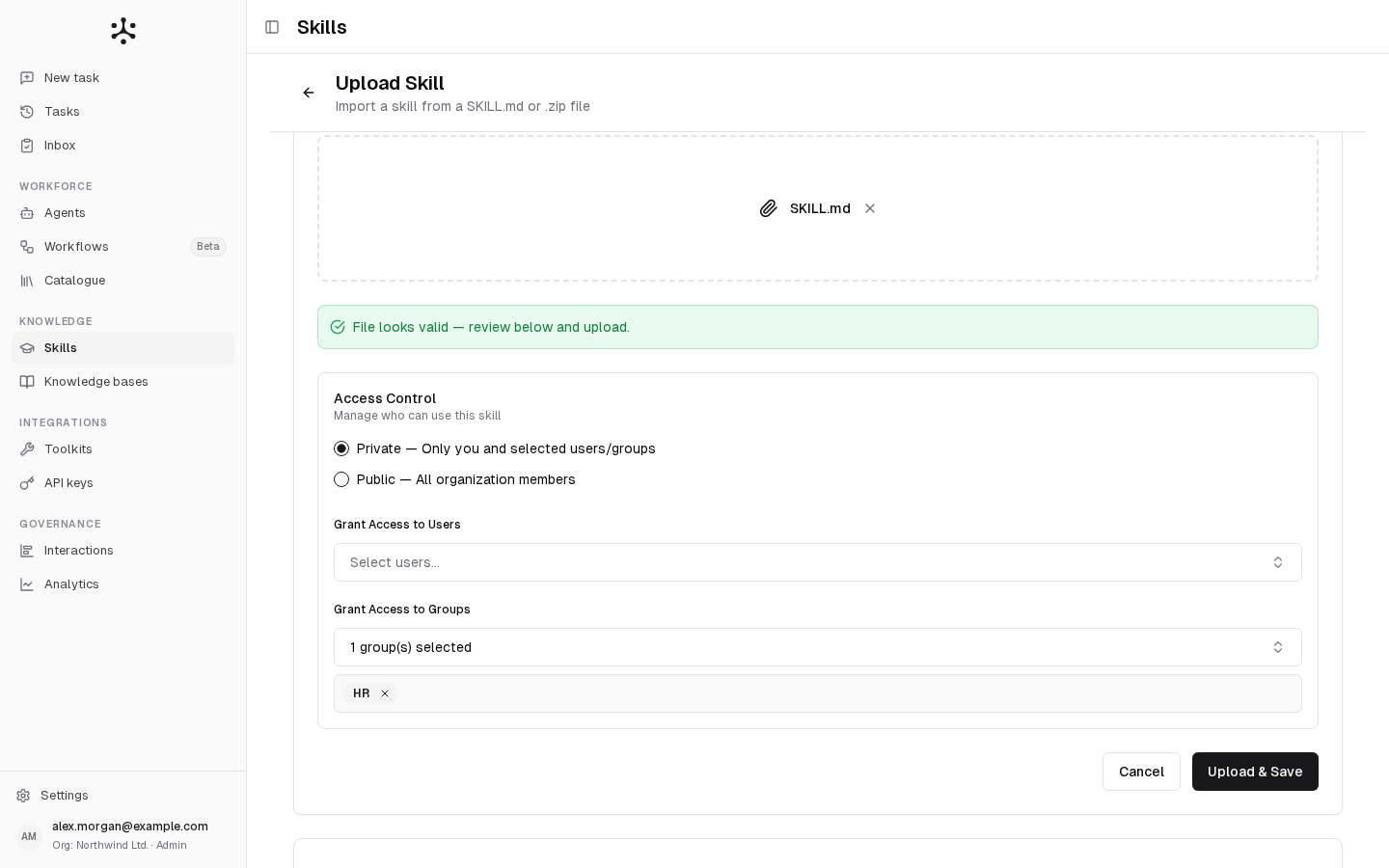
The page says File looks valid before you save, and the skill then appears in the list with an upload arrow next to its title.
Start from a copy
On Skills, open the menu at the end of a skill’s row and choose Duplicate. The copy is private, belongs to you and starts unpublished. Its name gets-copy added (customer-onboarding-copy, then customer-onboarding-copy-2 for a second copy), and its title ends in “(Copy)”. Open it and change it like any skill you created. This is also how you adapt a built-in skill such as Fill Docx.
Write SKILL.md
Whichever way you create it, every skill has a SKILL.md. It starts with a header between two lines of three dashes, followed by the instructions:
There must be some instructions after the header.
Files and limits
Which files a skill can hold
Which files a skill can hold
Text files (Markdown, plain text, code, configuration, CSV, HTML, JSON, XML, YAML and similar) and Word (
.docx) and Excel (.xlsx) templates. An agent can copy a template into its workspace and fill it in.Word and Excel files cannot be edited as text in the editor. Download the file, change it on your computer and add it again.Which files you can attach in the chat with NF
Which files you can attach in the chat with NF
Everything a skill can hold, plus PDF and PowerPoint (
.pptx) files. NF reads PDF and PowerPoint files as reference, but they cannot become skill files. NF can add a Word or Excel file you attach to the skill as it is, when it is 2 MB or smaller. Text files must be UTF-8 encoded.Why an upload is refused
Why an upload is refused
The upload is refused, and the page says why, when:
- it is neither
.mdnor.zip(“Only .md and .zip files are supported”), or a zip has noSKILL.md(“Zip archive must contain a SKILL.md file”); - it has no header (“File must have a YAML frontmatter block (--- … ---)”);
- the header has no name or description (“Frontmatter must include a ‘name’ field”), or one of them breaks the rules above;
- there are no instructions after the header (“File must have instruction content after the frontmatter”);
- a skill with that name already exists in your organization (“A skill with name ’…’ already exists. Update it or choose a different name.”).
Usage on SaaS
Usage on SaaS
NF’s work uses AI models and counts towards your plan’s usage. See Usage.
Related
- Skills: what skills are for, the list, sharing and versions.
- Using skills: attach the skill to an agent, edit it and publish changes.
- Configuring agents: the agent settings where skills are added.