

Who: Admins and Members (Viewers do not have the page) · Where: Workforce › Workflows in the sidebar · Works on: Enterprise and SaaS
Workflows carries a Beta badge in the sidebar, and the page opens with the notice Workflows is in beta. The feature still changes, so screens, options and defaults may move.
What a workflow is
You describe a process in plain language, and the builder turns it into steps. A step can ask a model to write something, call a tool, run code, check a value, or wait for a person to approve. Every run then follows those steps in order. Take an expense claim. The workflow reads the claim, checks the amount against the policy, asks a manager to approve anything over the limit, and drafts the reply to the employee. Each run records what every step received and produced, who approved what, and what the run cost.Workflows and agents
Use an agent for open-ended work and conversation. A workflow can still use a model or a bounded agent inside one of its steps. An agent can also be given workflows to run (see Configuring agents).
Find a workflow in the list
The list shows the workflows you can see. Click a row to open the workflow. Above the table you can search by name and filter with All workflows, Favourites, Has pending approval or Failing (the last run failed or timed out). When any workflow carries tags, you can also filter by Tag. Click a column header to sort.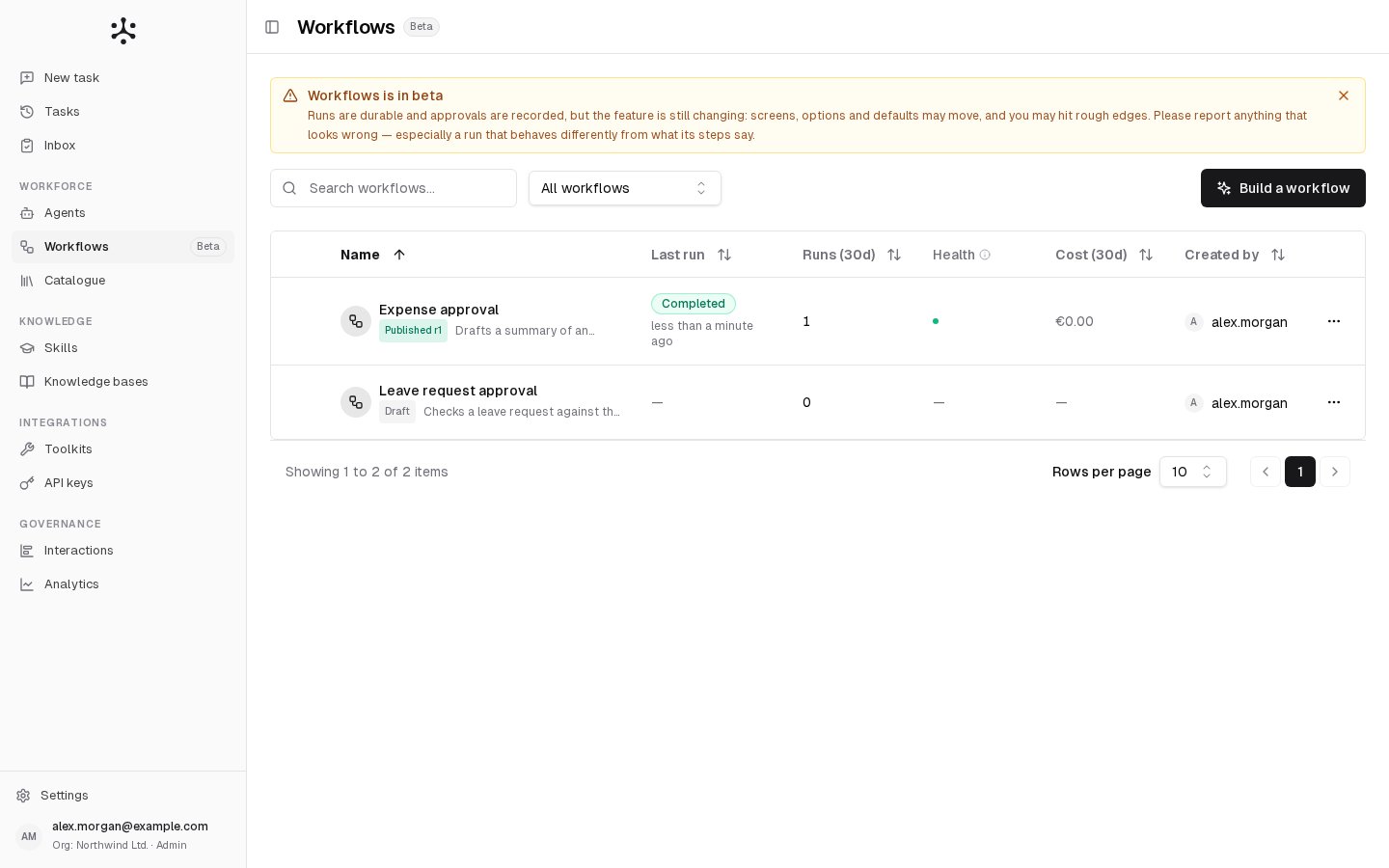
Row actions
Open a row’s menu for these actions.Share a workflow
A new workflow is Private. Its owner or an admin changes this on the workflow page under More actions › Settings & sharing.- Private: only the owner and the organization’s admins can access it. An admin can also grant access to specific Users and Groups.
- Public: every member of the organization can access it.
Who can do what
A member who opens a workflow someone else owns sees it read-only. They get the published revision only, with Run, Overview and Run analytics. If it was never published, the page says This workflow isn’t published yet.
Viewers cannot build or run workflows. The worker picker on New task offers them agents only, and the Inbox is not in their sidebar.
Enterprise and SaaS
Workflows work the same on both deployment types. The differences are limits and accounts.- Enterprise: no limit on the number of workflows. By default, up to 25 workflow runs can be in progress at once in the organization, unless your installation sets another value.
- SaaS: on the Free plan, agents and workflows together count as workers, and the plan allows 3. At the limit, Build a workflow is disabled and its tooltip says Worker limit reached (agents and workflows). Each plan also sets how many workflow runs can be in progress at once. See Plans and limits.
- SaaS personal account: you are the only person on the account. There is no sharing, the menu item is Settings instead of Settings & sharing, and the Created by column is hidden. Since nobody else can decide an approval, you can decide an Approval step only when it allows self-approval (see Approval steps).
Related
- Building a workflow: describe a process and turn it into steps, inputs and approvals.
- Running a workflow: run it, follow the run and decide approvals.
- Agents and workflows: when to choose which.
- Build your first workflow: a step-by-step example.