

Managing Documents
Once a knowledge base is set up, you can manage individual documents — upload new files, check processing status, and remove outdated content.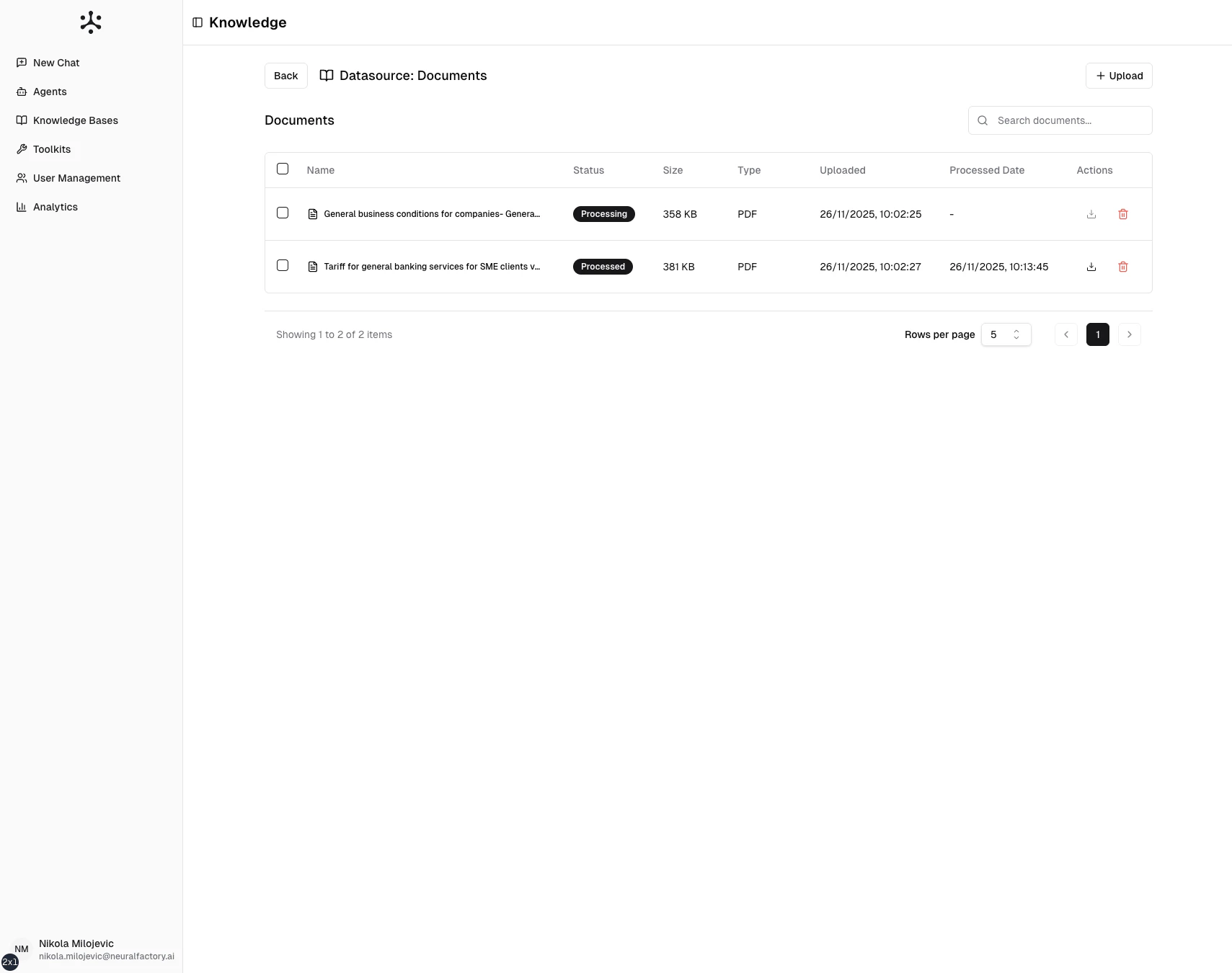
The documents list shows filenames, processing status, and metadata.
Viewing documents
Navigate to a knowledge base and click on a datasource to see its documents. Each entry shows:- Filename — The uploaded or synced document name
- Status — Processing state (Uploaded, Processing, Indexed, Failed)
- Date added — When the document was uploaded or synced
- Size — File size
Uploading new documents
To add documents to an existing file-upload datasource:- Open the knowledge base and select the datasource
- Click Upload Files or drag and drop new files
- Wait for processing to complete
Removing documents
- Open the knowledge base and navigate to the document
- Click the Delete action
- Confirm the deletion
Replacing documents
To replace an outdated document:- Delete the old document
- Upload the new version